
Direct answer
If your nonprofit has been approved for Google Ad Grants but Google Ads is asking you to add a payment method, stop before entering a credit card.
In many cases, the problem is not that the Grant disappeared. It is that you are looking at a normal paid Google Ads account instead of the separate Ad Grants account Google created for your organization.
The fastest way to verify that is to compare your Google Ad Grants Customer ID with the Customer ID shown inside Google Ads.
The short answer
If Google Ads is asking for billing information after your Ad Grant was approved:
- Sign in to your Google for Nonprofits dashboard.
- Find the Google Ad Grants Customer ID.
- Sign in to Google Ads using the same Google account used for the Grant.
- Compare the 10-digit Customer ID in Google Ads with the one shown in Google for Nonprofits.
- If they match, open Billing → Summary and look for wording indicating that the account is not billed.
- If they do not match, do not add a payment method. You are likely in a different paid Google Ads account.
- If you cannot access the correct Grant account, use Google’s Ad Grants account-access recovery form.
This exact problem appears repeatedly in the Google for Nonprofits community, including several 2026 threads answered by Google Ad Grants Product Experts.
Why is Google Ads asking for a payment method if the Grant was approved?
Approval for Google Ad Grants does not convert every Google Ads account associated with your email address into a Grant account.
Google creates a separate Google Ads account for the Ad Grant. If your Google login already has access to a normal paid Ads account, Google Ads may open that account instead.
That paid account will behave like any other Google Ads account and can ask you to create a billing setup or add a payment method.
Jason King, a Diamond Product Expert in the Google for Nonprofits community, repeatedly recommends checking the Grant Customer ID rather than assuming the account Google Ads opens is the correct one.
The key principle is simple:
The Ad Grant account is identified by its Customer ID, not simply by the email address you used to sign in.
Step 1: Find your Ad Grants Customer ID
Sign in to your Google for Nonprofits dashboard.
Open the Google Ad Grants section. If your Grant is activated, you should see a Google Ads Customer ID associated with it.
A Google Ads Customer ID is typically shown as three groups of numbers, such as:
123-456-7890
Write that number down before opening Google Ads.
Do not create a new Google Ads account just because Google Ads prompts you to do so.
Google Ad Grants Product Experts consistently warn that the Grant account should already exist after activation. You should be accessing the account Google created, not building another paid account from scratch.
For the full approval process, see my guide to applying for a nonprofit Google Ad Grant.
Step 2: Compare the Customer ID inside Google Ads
Now sign in to Google Ads.
Look at the Customer ID shown for the account you are viewing.
Compare it with the Customer ID from Google for Nonprofits.
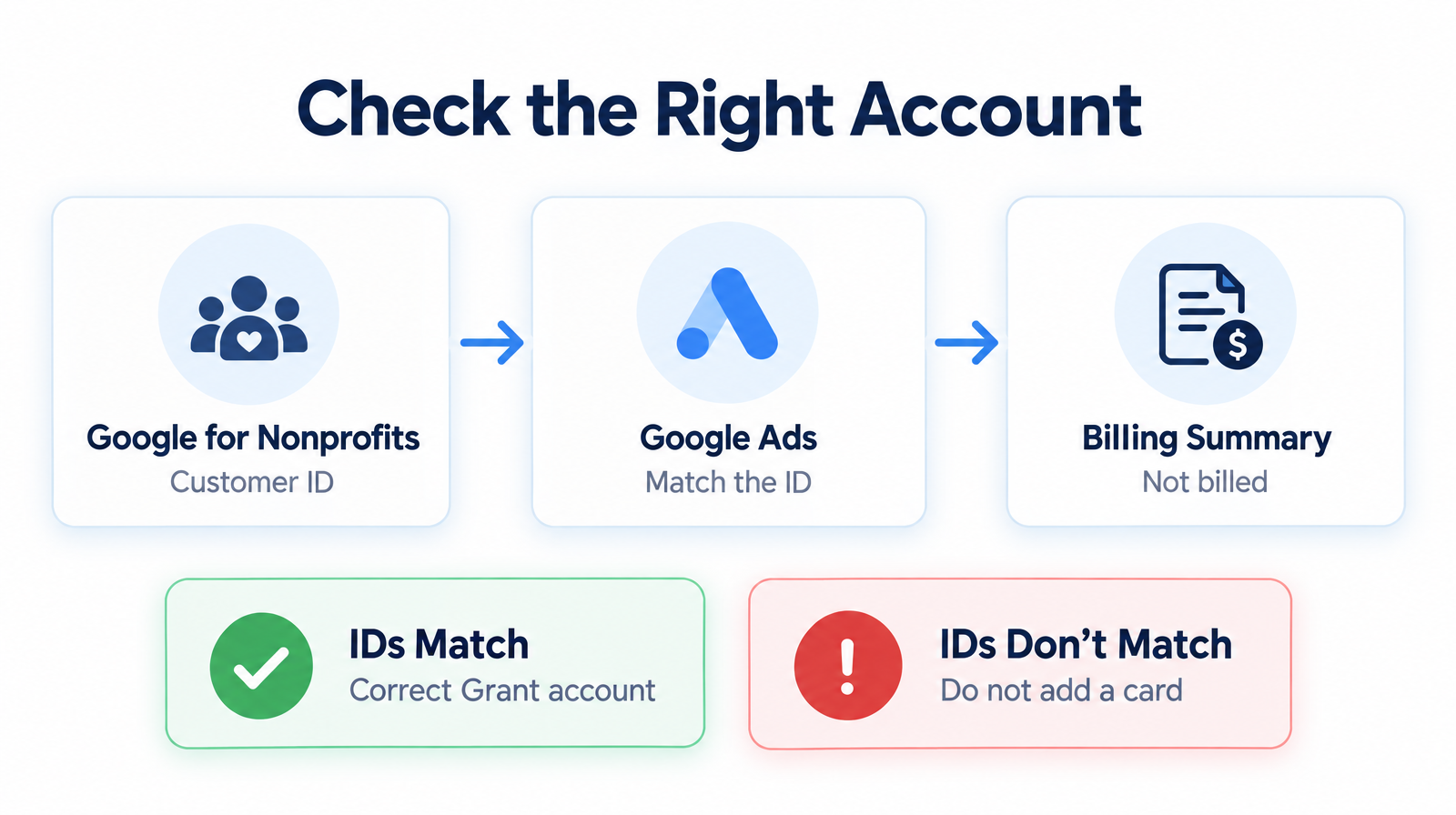
Quick check: make sure the Customer ID in Google for Nonprofits matches the Customer ID in Google Ads, then confirm Billing Summary shows the account is not billed.
If the Customer IDs match
You are probably in the correct Ad Grants account.
Open:
Billing → Summary
Google Ad Grants experts recommend checking whether the account shows language such as:
This account is not billed
If the Customer ID matches and the billing summary confirms the account is not billed, you are in the Grant account.
Do not add a credit card merely because another Google message or automated advisor suggests doing so.
If the Customer IDs do not match
You are looking at a different Google Ads account.
That may be:
- an old paid Ads account
- an account another employee created
- an account created accidentally during setup
- another Ads account associated with the same Google login
Do not enter billing information into that account because you think it will unlock the Grant.
If campaigns have already been created in the paid account, pause them until you confirm which account should actually be used. Otherwise, paid advertising charges may occur.
Step 3: Check whether you can switch accounts
One Google login can have access to multiple Google Ads accounts.
If the wrong account opens by default:
- Click your profile or account selector in Google Ads.
- Look for another Ads account.
- Compare each account’s Customer ID with the ID shown in Google for Nonprofits.
- Open the account whose ID matches the Grant.
Also confirm that you are signed in with the same Google account that received or manages the Ad Grants access.
Browser sessions can create confusion if you are simultaneously signed in to personal Gmail, another company account, and the nonprofit account.
Using a private/incognito browser window with only the nonprofit Google account signed in can make it easier to determine which account you are actually accessing.
Step 4: What if you cannot access the Grant account at all?
If Google for Nonprofits shows that the Grant is approved and displays a Customer ID, but you cannot access that Customer ID inside Google Ads, use Google’s Ad Grants account-access recovery process.
Google provides a dedicated account-access form for situations where the Grant account exists but the organization cannot access it:
https://support.google.com/grants/contact/grants_account_access_no_info
This is different from creating a new Google Ads account.
Community experts also report that access problems can sometimes happen when the account-access invitation and payments-profile invitation sent during activation are handled in the wrong order.
If that happened, recovering access to the existing Grant account is still preferable to creating another paid account.
What if Google sent me a payments profile invitation?
A payments-profile invitation is not the same thing as being asked to add a credit card to a normal paid Ads account.
This distinction is important.
Ad Grants users may still encounter Google account, payments-profile, or advertiser-verification processes. That does not mean the nonprofit should enter a credit card into the Grant account.
Jason King has also noted that Ad Grants accounts may still be required to complete advertiser verification. Advertiser verification and adding a payment method are separate processes.
Before acting on any billing-related prompt, verify:
- the Customer ID
- whether the account is the actual Grant account
- what Billing → Summary says
- whether the request is for identity or account verification rather than a credit card
What if Google Ads says my ads are not running because billing is not set up?
Do not assume the automated message is correct for an Ad Grants account.
In a 2026 Google for Nonprofits community thread, Jason King cautioned that Google Ads automated advisors may not correctly understand how Ad Grants billing works.
First verify that you are in the correct Grant account using the Customer ID and Billing → Summary checks above.
If the Grant account itself shows a billing-related error even though the ID matches, use the Ad Grants support and access channels rather than adding a payment method as a workaround.
Should a Google Ad Grant account ever need a credit card?
The Grant advertising credit itself does not require you to fund the eligible Ad Grants campaigns with a credit card.
A nonprofit can separately maintain a normal paid Google Ads account if it wants to run paid advertising outside the Grant. That paid account is separate and can legitimately require billing information.
This is why matching the Customer ID matters so much.
The same organization may have both:
| Account | Billing behavior |
|---|---|
| Google Ad Grants account | Grant-funded eligible advertising, account should be identified as not billed |
| Normal paid Google Ads account | Requires a payment setup and charges for advertising |
Do not assume one account becomes the other.
What should you do if you already entered a credit card?
First, determine which account received the payment method.
Compare its Customer ID against the Ad Grants Customer ID in Google for Nonprofits.
If it is a normal paid account:
- Pause any active campaigns you did not intend to fund.
- Review Billing and campaign activity for charges.
- Locate or recover access to the actual Grant account.
- Do not continue building Grant campaigns in the paid account.
Do not assume that entering billing information converted the paid account into an Ad Grants account. It does not.
Why does this problem happen so often?
Google for Nonprofits and Google Ads are connected, but they are not the same interface.
The Google for Nonprofits dashboard can show that Ad Grants is approved, while Google Ads may open whichever Ads account your login last accessed.
That creates a confusing experience:
Both screens can be technically accurate if they refer to different Google Ads Customer IDs.
That is why the Customer ID is the most useful troubleshooting checkpoint.
Quick troubleshooting checklist
Before entering payment information, check all of these:
- Is Google Ad Grants marked approved in Google for Nonprofits?
- What is the Ad Grants Customer ID?
- Does Google Ads show the exact same Customer ID?
- Does Billing → Summary indicate that the account is not billed?
- Are you signed into the correct nonprofit Google account?
- Can you switch to another Ads account from the account selector?
- Did you accidentally create a normal paid Ads account?
- If you cannot access the matching Customer ID, have you used the Ad Grants account-access recovery form?
If the Customer IDs do not match, stop. Do not enter a credit card simply to get past the setup screen.
What should you do after you get into the correct Grant account?
Once the access problem is resolved, do not judge success by whether the Grant account simply starts spending.
Make sure you have:
- meaningful conversion tracking
- campaign goals connected to the nonprofit’s mission
- relevant geographic targeting
- appropriate bidding
- strong landing pages
- Search and/or Performance Max campaigns built around useful actions
For the broader strategy, read my Google Ad Grant guide for nonprofit donations.
If your account is serving but you are considering a click-focused bidding strategy, also read Can You Use Maximize Clicks in Google Ad Grants?.
Methodology
I reviewed current Google for Nonprofits community threads from 2025 and 2026 dealing with approved Ad Grants accounts that unexpectedly requested billing information, including answers from Jason King and other Google Ad Grants Product Experts.
The recurring troubleshooting process is consistent: identify the Ad Grants Customer ID in Google for Nonprofits, compare it with the Customer ID in Google Ads, verify the Billing summary, avoid entering a credit card into the wrong paid account, and use Google’s Ad Grants account-access recovery form when the correct Grant account cannot be reached.
Community answers are practical guidance rather than formal Google policy. Google’s official Ad Grants and Google for Nonprofits documentation remains the final authority for eligibility, activation, access, and account requirements.
If you want help untangling an approved Grant account, I can review the account structure, access, tracking, and campaign setup as part of my nonprofit Google Ad Grant services.